The editor & reading view
What the live-preview editor does, what markdown Astrolabe renders, and how you get around the vault.
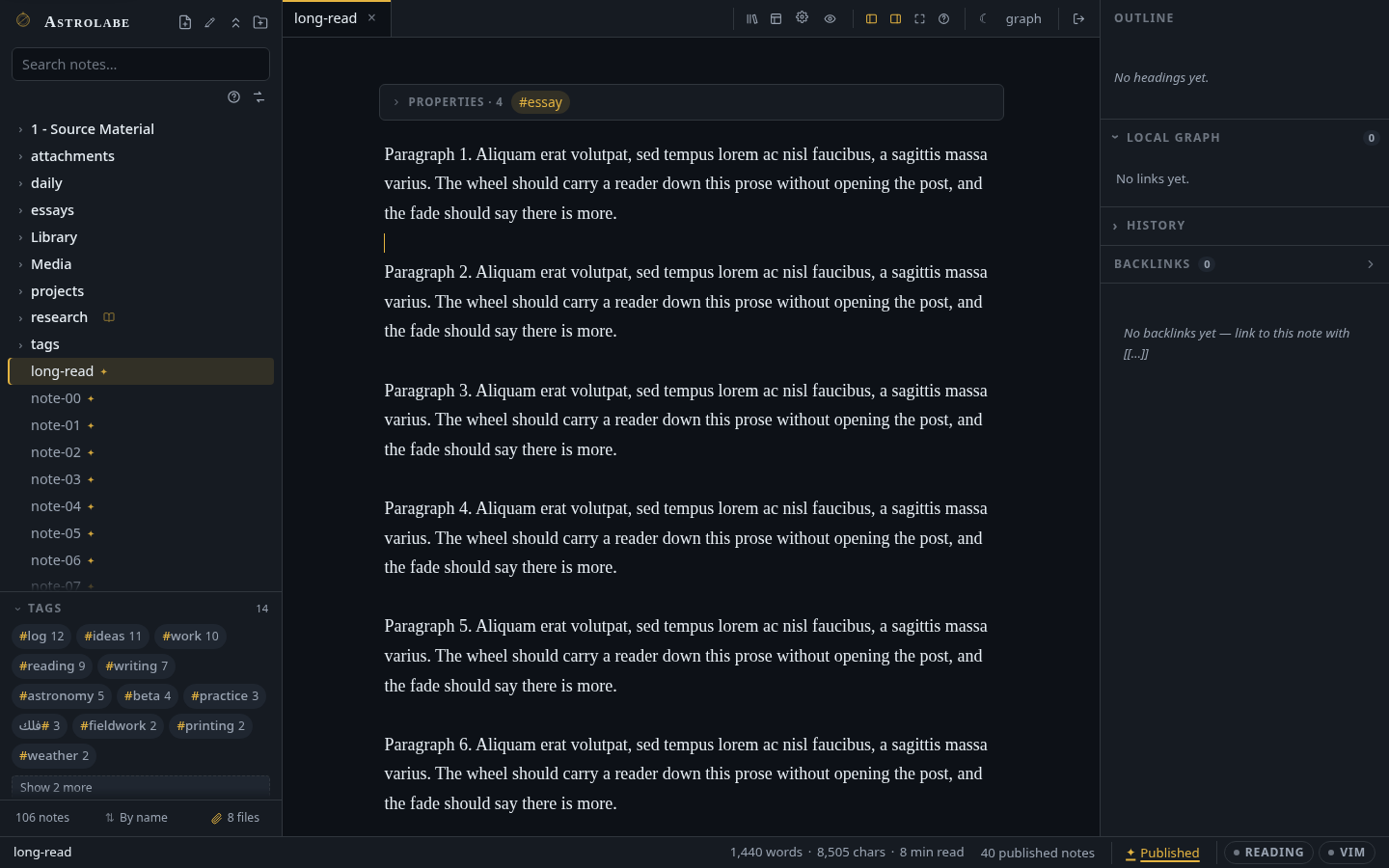
A quick word on the words. Your vault is the folder of files Astrolabe opens; every note in it
is a plain text file. Markdown is the light markup those files use: **bold**, # Heading,
- a list. Frontmatter is the small block of key: value lines between two --- fences at the
top of a note, where a note keeps facts about itself (its tags, its date, whether it is published).
A wikilink is [[Name of a note]]: a link to another note, by name. The rest of this page uses
those four words freely.
Writing
- Live-preview editor (CodeMirror 6). Markdown syntax hides itself on every line except the one
you are editing. Headings are set in a serif face, checkboxes can be ticked,
[[wikilinks]]are gold, and tags show as small pills. - Wikilinks with autocomplete. Type
[[and pick any note from the list.[[Name|alias]]shows different words for the link, and[[Name#heading]]points at one heading inside the note (type#inside the brackets to pick the heading). A heading link renders asNote › Headingand jumps straight to that heading. Rename a note and every link that pointed at the old name is rewritten for you. - Click to follow, click to create. A plain click on a rendered link opens the note. If the link is dashed, the note does not exist yet; clicking it creates the note.
- Selection that knows what it is looking at. Double-click takes the word under the pointer.
It treats a letter and the marks on it as one unit, so Arabic harakat and the Persian ZWNJ (the
invisible joiner) stay inside the word rather than splitting it. Double-click a rendered object
and you get the whole object: a wikilink, a
#tag, an inline$math$span, a code chip. Inside a code fence, double-click takes the whole name,$jqueryandsnake_case_nameincluded. Triple-click takes the paragraph, dragging extends the selection by character, and shift-click extends from where you were. The gatenpm run check-carettests this in both the English and the Arabic shell. - Frontmatter properties card, editable in place. While your cursor is outside the frontmatter,
it collapses to a neat key/value card with clickable tag pills, and you edit it right there: click
a value to type over it, tick a checkbox for
true/false, pick a date from a calendar, add and remove list values as chips, add a property, or remove one with the × at the end of its row. Add property lists every key the app understands (title,tags,aliases,banner,date,publish,description,dir,align,numbered,icon,language,cssclasses) with one line on what each does. Type to filter, use ↑/↓ and Enter to take one, or type any key of your own.tagsandaliasesare written as lists; comma-separated values become items. A note with no properties yet still gets the card: one line with Add property and Set banner…, so every note starts from the same place (Settings → Writing → Properties card on empty notes turns that off). Every one of those edits touches only its own spot: your quote style, your comments, the order of your keys and every line you did not touch stay exactly as they were. Deleting the last property also removes the---fences instead of leaving an empty rule behind. Keys that programs write rather than people (id,uuid,dg-*) stay read-only, andpublish:has its own switch in the status bar. It works the same on a.texnote, whose properties live in a%---comment block. - Hide the card when you don't want it. Right-click the card (or focus its head and press Shift+F10) and choose Hide properties: the card leaves every note — the editor, the reading view, and the empty-note card too — on every device, because it is saved with the vault. The toast that says so carries Undo. To bring it back later, run Show properties from the command palette or switch on Settings → Writing → Properties card. Hidden, a note's YAML is still there: put the caret at the top of the note (Ctrl+Home) and it opens as source, the way every other block in the editor does; a banner still shows. Only your own views change — visitors, and Preview as visitor, still see every card. On the phone, hold the "N properties" line; the ⋯ sheet's Properties tab still lists and edits them, and offers Show the card above notes while it is hidden.
- Templates.
{{date}},{{time}},{{title}}and{{date:FORMAT}}in the syntax other tools share, plus{{hdate}}for the Hijri date,{{cursor}}for where the caret should land, and{{prompt:Label}}for a question the template asks before it is inserted. Insert a template at the cursor or start a new note from one; the picker previews the filled-in result before you commit. See Templates. - Paste or drop attachments. An image on your clipboard, or any accepted file dragged from a
file manager (PDF, audio and video too), uploads and lands as
![[name.png]]at the cursor. An "Uploading…" placeholder holds the spot while the file is on its way. Where a paste or a drop into the note lands is a setting. You can also drop files straight onto the sidebar tree, onto a folder row, a note row or the tree's own background. A drop on the tree is a filing: the file lands in the folder you aimed at, whatever the setting says. A file type the server would reject is refused before the upload starts, not after, and the toast that reports the drop carries an Undo. - Slash commands. Type
/at the start of a line for a menu of things to insert, filtered as you type: a callout, a code fence (with a language search), a table skeleton, a task list, a math block, a divider, today's date, a link to today's daily note. - Dates by name. Type
@at the start of a word and a small list offers today, tomorrow, yesterday, next week and the seven coming weekdays; keep typing and it reads what you wrote:@in 3 days,@next thursday,@15 september,@sep 15 2027,@2 weeks ago— or, in Arabic,@غدًا,@الخميس القادم,@بعد ٣ أيام,@١٥ سبتمبر. Each row shows the day it means in the site's calendar, and Enter puts a link to that day's daily note where the@was, worded as a reader would say it:[[daily/2026-09-16|Wednesday]]for a day within the week,[[daily/2027-12-15|December 15, 2027]]for one further off. The folder and name follow your daily-note settings. A month name decides the calendar:@15 ramadanand@١٥ رمضانare Hijri days whatever the site is set to. Bare numerals (15/9) are refused on purpose — they read differently on every continent. The list opens only at the start of a word and never inside code, some@example.comand a@in a fence are left alone. - Callout and fence autocomplete.
> [!suggests every callout type with its icon and colour;```suggests languages as you type. - Hover previews. Rest the pointer on a
[[wikilink]]and a floating card shows the opening of the target note, rendered ([[Note#Heading]]previews from that heading). Footnote references preview their definition. Rest on a tag pill in the sidebar and the card lists the three newest notes that carry the tag — title, folder and a line of each — with the tag's full count under them, so a count becomes a glance before it becomes a click. - Section surgery. Fold a heading, extract it into a new note, or drag it in the outline to move the whole subtree. See Sections.
- Auto-numbered headings. Off by default. The outline's
1.button turns numbering on for the reading view, andnumbered: truein a note's frontmatter numbers it for everyone, including on the blog. Nothing is written into your markdown. - List and quote continuation.
Entercontinues-lists,- [ ]tasks, numbered lists and>quotes;Enteron an empty item ends the list.Ctrl/Cmd ↑/↓moves the current line up or down. Paste a URL over selected text and you get a markdown link. - Text formatting on the keys you already know.
Ctrl/Cmd B/I/U, plus strikethrough (Ctrl/Cmd Shift X) and highlight (Ctrl/Cmd Shift H), the same bindings Obsidian uses. Each one toggles, works with nothing selected (the markers are inserted and the caret sits between them), and applies line by line across a multi-line selection. See Keymap. - Selection menu and floating toolbar. Right-click a selection (or press
Shift F10) for the full menu, grouped: text style, structure, insert, colour. It works entirely from the keyboard, never runs off the screen, and mirrors in Arabic. A small Notion-style strip with the six most used actions floats over every selection; the last row of the menu turns it off, and the command palette turns it back on. - Read aloud. The selection menu's last row, or
Ctrl/Cmd Shift .anywhere, reads the selected words aloud in the language they are written in — French, Japanese, Arabic, English — with voices that run on your own machine's processor; in the reading view a small chip under the selection does the same. See Read aloud. - Furigana over kanji.
{漢字|かんじ}renders as a ruby in every surface; select a word with a kanji in it, right-click → Insert → Furigana… for suggested readings, or run the automatic command. See Japanese & furigana. - Headings in a colour of your own. Every heading, in the editor and the reading view alike,
takes the theme's
--headingtoken. The custom theme builder (Themes → New custom theme → Text) sets it directly, and the blog's article titles and the library's page titles follow. See Theming. - Coloured text in two tiers. A theme-aware palette that stays readable (AA contrast) on every built-in theme, and a fixed-ink palette for when you mean that exact colour. See Theming.
- Deletes that say what they are taking, and a trash browser. See Deleting.
- Vim mode for those who already know that editor's keys, autosave (600 ms after you stop
typing, plus
Ctrl/Cmd S), and a surface built to be driven from the keyboard.
Tables
A table in your note is pipes and dashes — that is all it ever is on disk. In the editor it is drawn as a table, exactly as the reading view draws it, and you edit it there, in the grid, without the pipes ever coming back.
Click a cell and type. A box opens inside that cell in the cell's own font, and the column
holds its width so nothing shuffles under your pointer. What you see in the box is the cell's
source — so **bold** is **bold** and a [[wikilink]] is a wikilink, ready to edit as
markdown, with the rendered version coming back the moment you leave. A | you type is escaped
for you (\|), so a pipe in a cell never splits the row.
The keys, once you are in a cell.
| Key | What it does |
|---|---|
Tab / Shift Tab | The next cell, the previous one, with its contents selected so typing replaces them. Tab in the last cell adds a row. |
Enter | Down a row, same column. From the last row it leaves the table. |
Shift Enter | A line break inside the cell (<br> — the only kind a markdown table can hold). |
← → | Move inside the box, and at its edge, to the neighbouring cell. In a right-to-left table they are mirrored, because they follow what you see. |
↑ ↓ | The cell above or below. |
Esc | Back to the note, caret just after the table. The cell you were in goes back to what it said. |
Shift F10 | The table menu (below), on the cell you are in. |
Nothing is written while you type. A cell is written back when you leave it — Tab, Enter, a
click elsewhere — as one change and one undo step, touching that cell's characters and no
others. Every other cell in the file comes out byte for byte as it went in.
The table menu. Right-click any cell — or press Shift F10, or, on a touch screen, the ⋯
under the table. It acts on the cell you opened it on:
- Insert row above / below, insert column before / after.
- Delete row, delete column, duplicate row, clear cell.
- Move row up / down, move column left / right. Left and right are what you see: in an Arabic table they are mirrored, and the alignment row moves with its column so a centred column stays centred.
- Align column left / centre / right, with a tick on the one that is true now. Choosing the alignment a column already has takes it off again.
- Sort by this column — A→Z, Z→A, or smallest number first. The header never moves, blanks
sort last, and
١٢is twelve. - Edit as Markdown — the drawn table gives way to the pipes, with the caret in the cell you were on. To come back, move the caret out of the block; it is drawn again.
- Copy table as Markdown — the whole table, tidied, on your clipboard.
Every one of those is a single undo step.
Big tables stay usable. A wide table scrolls sideways inside its own block rather than stretching the note, and a word in a squeezed column is never broken letter by letter. A table taller than the window scrolls inside itself with its header row pinned to the top, so the column you are typing in still has a name. A two-hundred-row table edits at the same speed as a three-row one: committing a cell redraws that cell, not the table.
Making one. Type / and pick Table for a 2×2 skeleton at the cursor, or run Insert
table… from Ctrl/Cmd P and sweep the little grid for the size you want (3 × 3 to begin with,
the header row counted). The palette also carries Table: insert row above / below, insert
column before / after and Table: edit as Markdown, which act on the table your cursor is in.
When the pipes are showing — because you asked for them, or because you moved the caret into
the block — the older keys still work: Tab and Enter walk cells, Alt ↑ / ↓ move a row and
Alt ← / → move a column. Leave the block and the pipes are lined up for you. See
Keymap.
French, corrected as you type
If you write French, the editor quietly puts the accents back. Type tres and a space and it
becomes très; coeur becomes cœur, etre becomes être, Ecole becomes École, deja
becomes déjà, ca becomes ça. Nothing appears on screen to tell you: the corrected word is
the whole message. It is on by default, and Settings → Writing → Auto-correct French
turns it off.
- Only on lines that read as French. A line counts as French when it has at least two
French words on it (
je,est,les,pour,c'est…), or when the note's frontmatter sayslang: fr, in which case every line counts. SoThis is tres chicin an English sentence is left exactly as you typed it — an English line with one French word in it is still an English line, and the editor never edits words you did not ask it to. A word in capitals (UN,LA,EST) does not count; a line with a Spanish, Italian, Portuguese or Catalan word on it (el,del,una,di,não…) is not French, since those languages sharela,de,unandque; and a line of Arabic, Hebrew or Chinese is never French, whatever Latin words it also carries. - Only at the end of a word. The correction happens when you finish the word: a space, a
comma, a full stop, Enter, a closing bracket or quote. While you are still typing the word,
nothing moves. A line's first words are usually finished before the line has its second
French word, so at the moment a line becomes French — its
je, itsles— the words already on it are corrected too, in one step:Tres bien, c'estbecomesTrès bien, c'estat the apostrophe. - Only words that can go one way. The list holds several hundred spellings that are not
words without their accent —
tres,etre,hopital,francais,ecole,deja,bientot,theatre,evenement,oeuvre… It never touches a word that exists both ways:a/à,ou/où,la/là,sur/sûr,du/dû,cote/côte/côté,tache/tâche,mur/mûr,eleve/élève/élevé— nor one whose accents could land two ways, likecree(créeorcréé),resume(résumeorrésumé) andreserve(réserveorréservé). Those need a reader, not a table. Capitals follow you (Etat→État); a word in all capitals is left alone. - French spacing, too. A space you type before
;:!?becomes the narrow no-break space French typesetting wants there, so a question mark can never start the next line by itself; a space just inside«or»becomes a no-break space; and three dots become the one…character. These follow the same French-line rule. - Never in code, links or math. A code fence, inline code, a link's address, a wikilink's
target, the frontmatter,
$math$, a\commandand anything inside a URL are not prose and are never corrected. - One undo takes one correction back. Every correction is its own undo step: press
Ctrl/Cmd Zstraight aftertrèsand you havetresagain — the word as you typed it, the space still there — and the editor remembers that you refused it and will not correct that word at that spot again. (The words a line gets when it becomes French are one step together.) With vim keys on, corrections happen in insert mode only. - Spellchecked as French. A line the editor treats as French is also handed to the French dictionary, so the words it has just corrected are not underlined in red by the English one. Settings → Language → Spellcheck in says which line languages are checked, as one row of named chips. In the desktop app it lists the dictionaries your computer really has, all chosen until you untick one (on a Mac the system decides, and the row says so). A browser cannot be asked which dictionaries it has, so there a French line is left unchecked until you choose French (and Arabic, Hebrew or Persian if your browser has them; in Chrome that is Settings → Languages → Spell check), and from then on a French line gets the red underline under its misspellings and none under its correct words.
Embeds
An embed puts a file into a note: the picture itself, a card for a PDF or a zip, one page of a
book, a player for a recording or a video, a drawing, or another note. Paste or drop a file into
the editor and the embed is written for you (it uploads to your
attachment folder; a video may be up to 256 MB, everything else
10 MB — behind nginx, raise client_max_body_size to match); to write one by hand, type /embed for the
three forms, or ![[ and pick the file — the list opens on your vault's files, with the forms
above it. The palette's Embed a file… does the same from the keyboard.
| You write | What appears |
|---|---|
![[name.png]] | The picture, at its own size up to the column's width. |
![[name.png|300]] | The picture, 300 pixels wide and centred. |
 | The picture, by path — standard Markdown, relative to the note. alt is what a screen reader says. |
![[file.pdf]] | A card for the file; click it to open the PDF in the reader. |
![[Book.pdf#page=42]] | Page 42 of the book, drawn as a picture, with "Book, p. 42" under it. |300 sets its width. |
![[lecture.mp3]] | A small player (also ogg, m4a and wav). |
![[clip.mp4]] | A video player, as wide as the note at most (also webm, mov, m4v, mkv and ogv, where the browser can play them; one it cannot is a card with a Download link). A webm with no picture — a voice note's recording — is the small sound player. |
![[clip.mp4|480]] | The video, 480 pixels wide and centred. |
![[clip.mp4#t=12]], ![[clip.mp4#t=12,30]] | The video, starting at 0:12 — and with ,30, stopping at 0:30. t=1:05 works too. |
![[clip.mp4|poster=frame.jpg]] | The video with frame.jpg (any picture in the vault, by name) shown until it plays; without one, the first frame. Combine with a width: |480|poster=frame.jpg. |
 | The video player, by path. |
![[bundle.zip]] | A card for the file (zip, csv, txt and the rest). |
https://youtu.be/… on a line of its own | A link — or, with Settings → Publishing → Embed external video on, that site's player (YouTube, Vimeo, PeerTube). |
![[sketch.excalidraw]] | The drawing, as the picture it saves beside itself. |
![[Note]], ![[Note#Heading]], ![[Note#^block]] | The note, one section of it, or one paragraph, as a card. |
Every embed but a note's can be picked up:
- Drag it. Within its note, the embed's line moves to where you let go — its width, its page and
its
{.center}go with it, and one undo puts it back. Into a note in another pane, the same![[…]]is written there (a second reference to the one file, never a copy of it). Out of the app — onto the desktop, a file manager, a mail — the drag carries the file itself in Chrome, Edge and the desktop app, and its link everywhere else; in the desktop app hold Alt as you drag to hand the real file on disk to the other program. In the reading view the drop lands between blocks, and a line shows where. - Right-click it (or press Shift+F10 or the Menu key with the caret on its source, or tab to
a picture in the reading view): Copy image puts the picture on the clipboard (a drawn page
copies the page); Copy link the file's address; Copy as Markdown the embed exactly as
written,
|300and all; Copy path its place in the vault. Open shows the picture in the viewer, the PDF in the reader, the drawing in its canvas. Go to page (a drawn page only) opens the reader there. Reveal in Files finds its row in the sidebar; Save as… downloads it; Rename… renames the file and rewrites every note that embeds it; Remove embed takes the line out of this note and leaves the file where it is. A row that cannot work is not there — no clipboard, no copy rows; a visitor sees only Copy link, Open and Save as…. - On a phone, hold it. The same rows come up as a sheet, with Move… in place of the drag: the top of the note, under any heading, or the end.
A video is picked up by its name under the player — a press on the picture is the player's own scrubber — and its menu has every row but Copy image; Open plays it in the viewer.
A picture's own tools are on it when you hover: drag the handle on its corner to resize it (the
|300 is written for you; double-click the handle to return to the picture's own size), and three
buttons align it left, centre or right by writing {.left}, {.center} or {.right} at the end of
its line. Clicking a picture does not swap it for its source and jump the view: the picture stays,
with the source editable beside it. A broken embed gets a dashed placeholder.
Rendering
- Align a line. End any paragraph, heading or image line with
{.center},{.right},{.left}or{.justify}and that block sits there, overriding the note's ownalign:. The marker hides like other syntax./center,/rightand/leftin the slash menu write it for you, and so does right-click → Align over a selection, for every paragraph the selection touches. Pandoc reads the same braces; Obsidian shows them as text. - Note transclusions.
![[Note]]renders the target note as a full card (callouts, math and code highlighting included), with an "Open note" button when the excerpt is longer than the card. - A page of a book.
![[Book.pdf#page=42]]draws that page where the embed stands — in the editor (a paper-shaped placeholder until it is rendered), the reading view and on your site when the book is published. Click the caption to open the reader on that page; a visitor's click opens the file there. - Sound.
![[lecture.mp3]]is a player everywhere the note is read.[[lecture.mp3#t=1:23]]is a link to a moment: clicking it seeks the player on the same page to 1:23 and plays, or opens the file at that moment when no player is on the page.t=83,t=1:23andt=1:02:03all work; give it an alias (|the argument) or it shows the time. - Video.
![[clip.mp4]]is a player in the editor, the reading view, on the phone and on your site when the note is published (its poster too). It asks for nothing until it scrolls near, and then only the file's first bytes; the server hands the rest over in pieces as you seek, so a long film starts at once.[[clip.mp4#t=1:23]]seeks it like a sound. Tab reaches the player, and the browser's own keys play, pause and seek it. - Video from another site. Off by default. With Settings → Publishing → Embed
external video on, a YouTube, Vimeo or PeerTube address on a line of its own — or written
— becomes that site's player in the reading view and on your site, and a card with the video's still in the editor (press play to load the player). The frame is the privacy-enhanced one (youtube-nocookie.com; Vimeo is asked not to track) and loads only as it scrolls near — but it is still another site's page inside yours, and it learns who is reading, which is why the switch is yours to turn. Off, the address stays a link. - Diagrams. A
```mermaidfence renders as a diagram in the editor, the reading view and on your site — flowcharts, sequence diagrams, Gantt charts, everything Mermaid draws — in the colours of whatever theme is on screen, redrawn when the theme changes. The renderer arrives only for a note that carries a fence, and it fetches nothing. A diagram that will not parse keeps its source, marked at the edge. - Callouts.
> [!note],[!tip],[!warning],[!danger]and friends: tinted, iconed, and foldable with-. - Math.
$inline$and$$block$$, rendered by KaTeX. - Code highlighting. Fenced blocks are highlighted for all common languages, in colours that match the theme.
- Highlights, comments, footnotes.
==mark==,%%hidden comment%%, and[^1]superscript references that jump to their definitions — and back: in the editor, clicking the[^1]:at the foot puts the caret on the reference; in the reading view the ↩ does the same. - Sidenotes. In the reading view, when the reading column is 1180px or wider and has a margin to spare, each footnote is set in the outer margin beside the line that cites it — a small serif numeral, then the note — and the list at the foot is hidden. Two notes that would collide stack downward. Narrower than that, on the site, in a transclusion card and on paper, footnotes stay at the foot as before. A note without footnotes is untouched.
- Reading view.
Ctrl/Cmd Eflips the note to a fully rendered, read-only page (tables included). It resolves links exactly the way the editor does.
.tex and .latex files are first-class notes with their own renderer. See
LaTeX notes.
Navigating
Backlinks panel. Every note shows which notes link to it, with the sentence that does.
Outline (table of contents) panel. The open note's headings, following your scroll position; click one to jump to it.
Footnotes panel. Under the outline, when the open note has footnotes: every
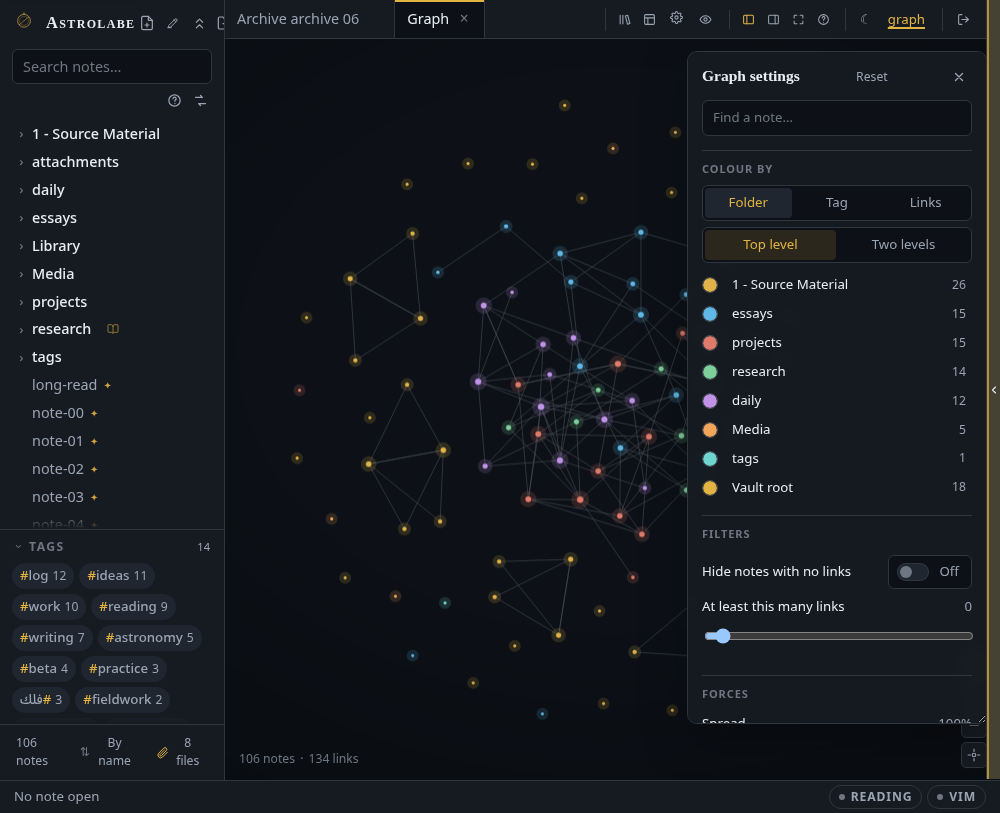
[^n]with what it says. Click a row to land on the reference in the text (the caret goes there in the editor; the reading view scrolls to the superscript); the small arrow at the row's end lands on the definition instead — at the foot, or in the margin when the note is set with sidenotes. The section remembers whether you folded it.Graph view. A map of your notes as dots, with a line for every link; the dots push apart and the links pull them together until the map settles, so linked notes end up beside each other by themselves. Drag the dots, hover to light up a note's neighbours, click to open. It opens as a tab in the focused pane (
Ctrl/Cmd G), so the map and a note can sit side by side or flip back and forth. The sliders button opens its settings: colour the notes by folder (one or two levels deep), by tag, or by query, with a legend where each group can be recoloured or hidden; a search that lights the matching notes; filters that hide orphans (notes with no links) or anything under a minimum number of links; the three forces (spread, link length, pull to centre); dot size, link opacity, the zoom level at which labels appear, and a glow. The settings panel itself is yours to place: drag it by its title anywhere over the graph, drag its corner to make it as short or as narrow as you like, and Reset puts it back. All of this is remembered per browser and never touches the vault.Graph groups by query. Group by query in the colour legend takes up to six rows, each a query the search box would take (
tag:physics before:2026,path:Journal -is:published,linkto:Ledger) beside a colour swatch. Every note a query names is painted its colour; a note two queries name belongs to the first row, so the order of the rows is a precedence you can see. The legend lists each query with how many notes it painted, and No query gathers the rest in the theme's neutral. The default swatches are six hues walked from the theme's accent, so the groups belong to the theme; set your own on the row or in the legend. Remembered per browser with the rest of the graph's preferences.Full-text search. Instant; it matches a word from its first letters and forgives a small typo, and shows highlighted snippets with the markdown syntax stripped out. It answers to localised tag labels as well as the canonical ones, and it folds diacritics and letter shapes, so «المقدمة» finds a note that spells it «الْمُقَدِّمَة» and
resumefinds résumé. See Searching in Arabic.Search operators. The
?under the search box opens a card that lists them. Operators narrow the results together, and any one of them can be negated with a leading-:Type Finds tag:recipesthe topic and everything nested under it path:Journalnotes whose path holds the text is:published,is:pagethe frontmatter flags after:2024,before:2024-06-15by the note's own date ( YYYY,YYYY-MM,YYYY-MM-DD, UTC;after:is inclusive from the start of the named period andbefore:is exclusive of it, soafter:2024 before:2025is exactly 2024)linkto:Ledgernotes that link to that note linkfrom:Ledgernotes that note links to in:books,in:notesonly pages of the shelf's PDFs, or only notes — see Searching inside every book -tag:drafteverything but path:"Reading notes"a value with a space in it A query made only of operators is a real query:
tag:recipeson its own lists every recipe, newest first. Anything that does not parse (before:soon, a baretag:) is treated as an ordinary word, rather than silently matching nothing.Search and replace across the vault. The ⇄ button under the search box (admins only). The search box sets the scope: whatever operators are in it decide which notes are considered, so
tag:recipesreplaces inside the recipes and nowhere else. You always get a dry run first: every file it would touch, every line, the replacement beside the original, and a checkbox on each. Then one button, and a toast with Undo. Where the vault is a git repository the panel offers to take a snapshot first, ticked by default: the in-memory undo expires, a commit does not, so a replace you regret tomorrow is still recoverable through Backup & sync. Two rules worth knowing before you type:- Matching is exact. Case and diacritics count, and the text is taken letter for letter
unless you tick Regular expression (then it is a pattern in JavaScript's syntax,
$1capture references included, applied one line at a time, so^and$mean the ends of a line). The search box above folds case and diacritics because finding is a question; replacing is a write, and a replace that stripped the harakat off a word you never typed would be destroying text you never saw. - Frontmatter is never touched. Properties have their own editor, the one that changes only the spot you edited. A blind pattern run over the frontmatter is how other tools eat your quote styles.
A file that changed on disk between the preview and the press is skipped and named, never overwritten.
- Matching is exact. Case and diacritics count, and the text is taken letter for letter
unless you tick Regular expression (then it is a pattern in JavaScript's syntax,
Tags.
#inlinetags and frontmattertags:are counted and clickable in the sidebar. A click filters the tree to that tag;Escanywhere in the sidebar (or with nothing focused) clears the filter, and so does a second click on the lit pill. Right-click a pill to rename the tag across the whole vault, inline#tagsand frontmattertags:alike, with everything nested under it coming along (#zettel→#sliptakes#zettel/seedwith it). Renaming onto a tag that already exists merges the two, and the dialog says so before you press anything. You are told how many notes will change before it runs, and the toast that follows carries one Undo. The rewrite never enters a code fence or an inline code span, so a#definein a shell block is left exactly where it is; your quote styles, comments and every other frontmatter key survive byte for byte. The tag's own page under the tags folder comes along, and its localised label moves with it.Rename a heading and the links follow. A
[[Note#Heading]]link breaks quietly when the heading is renamed: it still opens the note, but lands at the top. When a save renames a heading that other notes point into, Astrolabe says so: "3 links point at “Introduction”. Update them to “Preface”?", and one button repairs them all. It is always an offer, never automatic, and it too carries an Undo.Attachments are in the tree, with a lightbox, players and downloads. See Attachments.
Reorganize by dragging, with every link repaired. See Reorganizing.
Daily notes.
Ctrl/Cmd Alt Dopens today's note, creating it if needed (daily/YYYY-MM-DD.mdunless configured otherwise).A shell that gets out of the way. Collapse either side pane (
Ctrl/Cmd Alt B,Ctrl/Cmd Alt Shift B) down to a slim reopen handle, or go zen (Ctrl/Cmd Shift Z): the sidebar, the panel, the tabs and the status bar step aside and the prose sits centred on a wide measure.Esc(or the faint ✕) brings everything back. Every state is remembered across reloads, and folding a pane never moves the note: the column stays optically centred in the window whichever panes are open, with deliberate air beside a closed pane's reopen handle.Notes sidebar on either side. Three states, in the palette and in Settings → Appearance → Notes sidebar: follow the language (the default: left in English, right in Arabic, re-evaluated whenever the language changes), or pin it to the left or right edge for good.
Your editor's language is yours. Three more states in the same two places: Editor language: follow the site (the default), English or العربية. It is a per-browser choice that changes nothing about what your site publishes, so an Arabic site can be run from an English editor. Each palette row names its language in that language's own script, on purpose: it stays findable when the interface is in a language you cannot read. See Arabic & RTL.
Command palette.
Ctrl/Cmd Psearches notes and commands together. A command only appears when the query genuinely matches it, at most five of them, and they sit above or below your notes depending on which matched better. (Typingsortused to put Design your site over the whole vault.) Start the query with@or#to jump to a heading (or a LaTeX\label) inside the note you are reading instead. It is a quick switcher too. When no note is called what you typed, the list ends with Create “…”: Enter makes the note, in the folder of the note you are in (or exactly where a typed path says), and opens it. Every saved layout is a row — Load layout: Research — soCtrl/Cmd P, the layout's name, Enter restores an arrangement without a picker. And New unique note makes a note named by the minute (202609151042) and asks nothing; see Unique notes.Live vault watching. Edit a file in any other editor and the app updates within about a tenth of a second.
Live queries
A ```query fence is a list of notes that answers a search, drawn live wherever the note is
read: the editor, the reading view, the blog. It takes the search box's operators and five keys:
tag:reading prop:status=reading -tag:draft
show: title, date, status, tags
sort: date desc
limit: 20
as: table
| Key | Values |
|---|---|
show | columns: title, date, modified, tags, excerpt, path, or any frontmatter key (status, author) |
sort | date, modified, title, path, relevance, each with asc or desc |
limit | at most this many rows (500 at most) |
as | list (title and excerpt), table, cards, or timeline |
by | the timeline's date: created (the note's own date, the default), modified, or any frontmatter key holding a date (by: read) |
The timeline lays the rows on a vertical line under year headings, newest first (sort: date asc for oldest first), each with its day; the years and the days are printed in the site's
calendar, so a Hijri instance heads its years ١٤٤٧ and ١٤٤٨. With by: read the date is read off
each note's read: property — 2026-03-04, 2026/03/04, 2026-03, 2026 and 4 March 2026
all count — and notes whose property is missing or not a date gather at the end under Undated
rather than disappear.
tag:book
as: timeline
by: finished
show: title, author
Every other line is the query. prop:status=reading is an operator that came with this feature:
search by any frontmatter property. prop:author alone means "has one", and -prop:draft excludes.
The list is scoped to the reader (a visitor's fence on a published note lists published notes only)
and it re-reads when the vault changes. Obsidian renders the same fence language, so the note stays
readable there.
Tasks across the vault
Every - [ ] line is a task. The fields Obsidian's Tasks plugin taught vaults to write are read off
the end of the line: 📅 2026-09-20 due, ⏳ scheduled, 🛫 start, ✅ done on, 🔁 every week, and
⏫ 🔼 🔽 priority. A ```tasks fence lists tasks from the whole vault, grouped by note, and in the
editor each box is live: a tick flips that one line in the note it lives in and stamps ✅ today,
so Obsidian's Tasks reads the same state.
not done
due this week
tag:work
sort: priority
Lines: not done (the default), done, all; due today, due this week, overdue, due before 2026-10-01, due after …, due on …, has due date; path:Projects, tag:work, limit: 50,
group: none, sort: due | priority | path. The Sigils page opens with the tasks due by today.
Unlinked mentions
Under the backlinks, the right panel lists notes whose prose mentions the open note's title, or one
of its aliases, without linking to it. Whole words only, never inside a link, code or a template, and
folded like search, so a pointed Arabic title finds its plain spelling. Link wraps those words as
[[Note]] (or [[Note|the words]] when they are not the title's own spelling) with one edit to
that line; Link all does every row. This is how small notes get woven into a web.
Nearby
Under the backlinks, Nearby lists the ten notes that read most like the open one — without a model, without the network, without anything leaving the vault. Two notes are near when they use the same uncommon words: every word is weighed by how rare it is across your vault (a word in every note weighs nothing, which is why no stop list is needed in any language), tags count as words somebody chose and weigh more, and the score is the overlap of the two notes' weighted vocabularies (a TF-IDF cosine over the same folded terms the search index holds, so a pointed Arabic word and its plain spelling are one term). Each row shows the score as a percentage and the two terms that tie the notes, so you can see why before you open it; hover a row to preview, click to open. The list follows the vault: an edit to any note moves every score a little, and the panel re-reads after each change. It is the owner's panel — a visitor's site never gets it, since the scoring reads every note's body — and its collapse is remembered per browser.
Under Nearby, two more lists answer the same question by meaning rather than by shared words: Related, the notes about the same things (in either language), and Suggest links, passages elsewhere worth linking from the note you are writing. Both need Ollama on your machine; see Ask the vault.
Block references
You can link to one paragraph or one list item, not only to a whole note. End it with a space and
an id that starts with ^, like …the rule of three. ^rule3, or put ^rule3 on a line of its own
right under the block. Then:
[[Note#^rule3]]links to that block and lands on it; the hover card shows just that block;![[Note#^rule3]]transcludes only that block, in the editor, the reading view and on the blog;[[Note#in the editor offers block ids beside headings, and the palette's#jump lists them.
The marker is hidden in the reading view and in live preview until the caret is on its line, where
it shows faint and monospace so it can be read or changed. Copy link to this block in the
command palette makes an id for the block under the caret (or uses the one it already has), appends
it as one undo step, and copies the link; on a heading line it copies the section link instead. The syntax
is Obsidian's, so a vault that already carries ^ids keeps every link.
Find and replace
Ctrl/Cmd F opens find and replace inside the note. Type, and the count says where you are. Enter
goes to the next match, Shift+Enter to the previous; Enter in the replace field replaces one and
Ctrl/Cmd+Enter replaces all. The three pills are match case, regular expression and whole word.
Ctrl/Cmd Shift F opens Search & replace across the vault in the sidebar: every note that
matches, line by line, ticked or unticked, replaced in one go with an undo and an optional snapshot
first. Esc from any field in that panel closes it.
The bar and the top cluster
The bar under the note says where you are, how long the note is, whether it is published and which mode you are in. While text is selected the count reads 12 of 840 words, the selection against the whole, so trimming a paragraph to length never means deselecting to see the total. The count is one rule for the author and the blog's N min read alike: frontmatter, fences and markup are not words, and an Arabic letter with its harakat is one letter, so a pointed «الْحَمْدُ» counts exactly as «الحمد» does. It ends with the version you are on: the updater on the desktop app, the releases page in a browser. The shell's own controls sit at the top, after the tabs: the panes, zen, the graph, the site designer, settings, the theme, and signing out.
Arranging the tree
The order the vault has on disk is the default, not the law. In the sidebar's footer, Sort the tree offers by name, by name reversed, or my own order. Dragging a row above or below a sibling switches to your own order by itself, and Forget my order puts everything back. Ctrl/Cmd-click gathers rows into a selection: drag them together, or right-click one to move or pin them all. Pin to top puts a note or a folder in a scratch area above the vault, in any order you drag it into, for as long as you are working on it; Unpin all clears the area. Focus here shows only one note or folder and the path to it; Show all brings the rest back. Every folder's menu also has Collapse everything inside and Expand everything inside. All of this is per browser; the vault on disk is never reordered.
The writing column (Settings → Appearance) is Narrow by default — lines at a reading measure. Wide and
Full let a table or a code-heavy note use the screen, and Custom takes a width of your own,
in pixels (900px) or as a share of the pane (70%), applied as you type. The reading view follows
the same choice.
What's new after an update (Settings → About, on by default). The first time this device
opens a new version of Astrolabe as an admin, a short deck walks through the release's features: one
slide per feature, a live piece of the product on each (a sigil card you can tick, a warmth slider
you can drag), next and back, ←/→ on the keyboard. It appears once per minor version: a
bug-fix release shows nothing new, and a reader who skipped 3.11.0 and lands on 3.11.2 still gets
the 3.11 deck. A device that skipped several releases gets every deck it missed, oldest first, in one
walk. A brand-new install gets no deck at all: the tour is that reader's welcome, and the palette
door below is there when they are curious. Close the deck and it counts as seen. Don't show these
after updates on its footer, or the switch in Settings, turns it off for good (the switch travels
with your preferences). What's new in this version in the command palette reopens the deck on
purpose, including every earlier release.
The two side panes
Drag the inner edge of the notes sidebar or the side panel to resize it; the width is remembered per browser. Drag it off the window edge and it closes; the slim handle it leaves behind reopens it with a click or a drag inward. Double-click the edge to go back to the default width. Ctrl/Cmd+B and the collapse buttons still do what they did. The seams between split panes are grips too; see panes.
Folder marks
Right-click a folder and choose Folder icon: a search field (it already has focus, so type
"tele" and press Enter for the telescope) over three hundred glyphs on nine shelves, from writing and
science to places, nature, food and money. Both languages are searched whatever language the
interface speaks, and so are each glyph's keywords ("gym" finds the dumbbell). The public site's
custom folders pick from the same set through their glyph button in Settings. Your own image at
the foot of the picker takes a vault image instead: typed, picked from the vault, or uploaded on the
spot (SVG, PNG, WebP, GIF or JPEG, up to 512 KB; a small square reads best). It is kept in the vault
like any attachment, and a collection or a folder note can wear one too
(icon: attachments/icons/rocket.svg).
Notes to self
An annotation is a note you attach to a passage of your own text, without changing the text. Select
a passage in the reading view and press Annotate, or select words in the editor and press the pen
on the floating toolbar (or Annotate in the right-click menu): the passage takes an ink colour
and you write what you want to say about it. The words stay marked in both views, editor and
reading, in their ink with a line under them. Rest the pointer on a mark and the note appears; click
it to edit the note, change its ink, show or hide it from readers, or delete it. The note file itself
is never touched. Annotations live in annotations.json — in the data directory, and mirrored into the vault's
.astrolabe/ folder so every server over the vault shows them (settings travel with the vault) — anchored
by the passage's own words (with a little context on either side), so they survive the note being
edited above them, moved, renamed, or rendered in a different typeface. A passage that is gone is
listed under the prose as no longer in the note.
Click a mark to read, edit, recolour or delete it, or open it from the list under the prose. Each annotation has a Show to readers switch. On, it appears on the blog article and on the lesson page in the library as The author's note, with an accent underline, when the note is published. Off (the default), it is yours alone, and a visitor never learns it exists. Six inks, your choice.
Modes you cannot sit in by accident
Reading, vim and visitor preview each light a pill in the status bar (accent-filled, clickable to leave, with a tooltip naming the shortcut). A mode that takes typing away also states itself in the workspace: a one-line strip above the note ("Reading — this note is read-only" plus an Edit button) and an accent rule down the column's leading edge.
Vim gets the same treatment one level deeper, because "vim is on" is not the trap; "the keys under
your fingers are commands right now" is. So the pill carries the live sub-mode (VIM │ NORMAL,
│ INSERT, │ VISUAL, │ REPLACE), vim's own -- INSERT -- line and its : / / command
line sit at the foot of the editor, and in zen, where the status bar has zero height, the strip says
it instead. Visitor preview is a strip at the top that pushes
the page down, so it never covers the layout you opened it to judge, and it never survives a reload.
Relative line numbers. With vim keys on, the margin counts lines outward from the caret, so
7j and 3k can be read straight off it, and the caret's own line shows its absolute number
(vim's number relativenumber). The column sits against the text, not at the window's edge, and it
follows every caret move, not only edits. It is the only line numbering the editor has: a prose
editor wants no column of numbers beside a paragraph, so the gutter exists only while vim is on, and
Settings → This device → Relative line numbers (under Vim keys, on by default) turns it off for
readers who navigate by search.