Blog mode
The ready-made blog: a masthead and a row of topics, article pages, a magazine-style home page, an RSS feed and search-engine tags.
Astrolabe can show visitors your published notes in the shape of a classic blog. Turn it on with PUBLIC_LAYOUT=blog, or in Settings → Publishing → Public layout → Blog. Visitors then get:
- a masthead at the top of every page, carrying the site name and its tagline (
SITE_TAGLINE); - a horizontal row of topics, one per tag;
- article pages with a title, a date, a word count, an estimated reading time and the note's tags, with comments underneath when
COMMENTS=on; - a footer (
SITE_FOOTER, which defaults to© <year> <SITE_NAME>; write{year}and{siteName}in it and they are filled in for you).
An Arabic article is shown right-to-left and an English one left-to-right, each on its own. If the whole site is Arabic, SITE_LANG=ar mirrors the blog's frame too (see Arabic & RTL). None of this touches you as the signed-in admin: you keep the full app, sidebar and all. The blog is only what visitors see.
Dates on posts take their month names from the interface language (an English interface says August, an Arabic one says أغسطس) and their digits from the instance's numeral setting. BLOG_LOCALE is that setting: a language code such as en or ar (any BCP 47 tag; the default is en), which also becomes the language of the RSS feed.
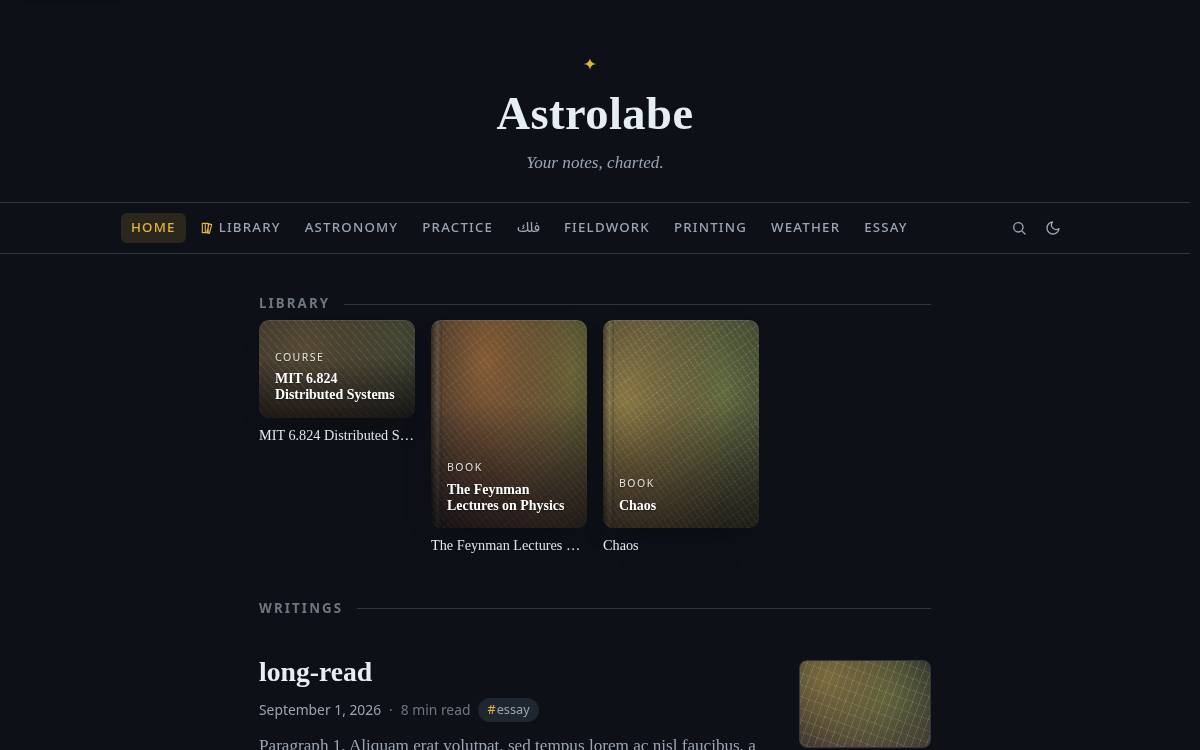
The home page starts with your HOME_NOTE, rendered as an introduction, when that note is published. Below it comes the list of posts, newest first. Each topic has its own page at /topic/<tag>. An article's address is the note's ordinary address; nothing changes there.
What counts as a post
Every note with publish: true is a post, and the list is sorted newest first. The date of a post is decided in this order:
- The frontmatter. (Frontmatter is the block between two
---lines at the top of a note.)date:,created:orpublished:, whichever is found first and can be read as a date. Both a bare YAML date like2024-05-01and a quoted or ISO string work. - A numeric
id:, if the note's template made one. Such an id is the exact moment the note was created (Date.now(), padded to the length the template asked for). It is the truest creation time a note can carry: older than anything the disk or the record described below knows, and unaffected by moving files around in the vault. - The moment this instance first saw the note. That is not the file's creation time as the disk reports it today. Every save writes a temporary file and renames it over the note, and the operating system treats that as a brand-new file, so the disk's "created" time is really the time of the last edit. The instance therefore remembers the first creation time it ever met for each path, in
ASTROLABE_DATA/created.json. When the vault is a git repository, it fills that memory from the commit that first added the file, so an old vault with backup turned on gets its true dates back. A vault that was moved by copying files, with no git history, still needsdate:in the frontmatter; otherwise its posts all look like they were created on the day of the copy.
The excerpt shown in lists is the first real paragraph of prose: markdown marks are stripped, and template leftovers such as a bare timestamp or a Tags: #a #b line are skipped. It is cut at about 220 characters, at a word boundary. GET /api/posts serves the list.
Notes in the templates folder never appear in the post list, the feed or the dashboard, even when they carry publish: true so that notes made from them inherit it.
Set
EXCLUDE_TAGSbefore you go live. The topic row is built from the tags of your published notes, and that includes workflow tags: status markers like#draftor#seedling, note-maturity tags, todo states. Left alone, those become public categories. List them inEXCLUDE_TAGSand they disappear from the topic row, the topic pages and the tag chips on articles. Your vault and the admin view are not affected.
The nav is always one line
However many topics your tags add up to, the topic row stays on one line. It measures itself, keeps the topics that fit, and folds the rest into a "More ▾" menu beside them. It measures again on every resize, in both directions, so it never wraps into a ragged second line. Below about 840px of width the topics move into the usual collapsed menu (the ☰ button), which lists all of them at once.
Collections do not fold. When the row also carries collection chips (see the next section), Home and those chips stay in the bar at every width; if there are more than fit on a phone, the row scrolls sideways. Only the topics fold away. The reasoning: a collection is something you declared as part of the site's structure, and a structure hidden behind a menu labelled Topics would have been demoted to just another topic. A thin line separates the two groups, because otherwise the collection GAMES and the topic games would look like the same chip twice.
A topic is shown under its localised label when it has one; its address keeps the original name.
Custom public folders
Collections and author-site gallery cards are also available in designed mode, with the same visibility and placement settings.
Where do categories come from? That is the first choice at the top of the section: Tags (one topic per tag; the default) or Folders (the vault's own layout).
Under Folders, every published note takes its parent folder as its category. The folder's name becomes the category's title (a sorting prefix such as 2| is removed), the mark you gave the folder in the note tree becomes its mark, and the navigation, the band on the home page and each category's page all come from that alone. Notes at the root of the vault have no category. Tag topics leave the navigation, though tags still appear on posts. A folder note (a note named like its folder, or an index.md inside it) can give the category a description:, a title:, an icon: and hidden: true, from the vault itself. Collections do not exist in this mode; the folders are the categories.
Under Tags, you get collections. Topics are what your notes say about themselves, through their tags. A collection is what you say about a group of notes: Games, Reading, Field notes, whatever your site is really about. A collection is a hand-made topic that sits in the navigation beside the automatic ones.
Turn collections on in Settings → Collections. Each collection has a title, an address (/folder/<slug>), one mark from the same set of glyphs the note tree uses, and an optional line of description. You can have up to twelve, in the order you arrange them, and that is the order readers meet them.
A collection is a tag page. You declare it in the vault, not in Settings: make a note in your tags folder (for example 2 - Tags/games.md) with collection: true in its frontmatter, and, if you like, icon:, description:, title:, hidden: true and folder: (a vault folder whose published notes all belong to the collection). The tag is the collection: every note carrying #games is in it, and the collection's chip in the navigation takes the place of the tag's own. Nothing is typed into Settings; the panel simply lists what the vault declared.
From the tree, without typing. Right-click a folder and choose Create a topic from this folder…: the tag page is written for you, with the folder's tree mark and folder: already set. Right-click a note and choose Collections… to tick the collections it belongs to; the tags: line (or folders:, on an older note) is written for you. A membership that comes from the folder shows as ticked and stays that way.
Making a topic publishes nothing, and publishing makes no topic. The two are kept separate on purpose, and the menu names them separately. A topic's members are the notes in its folder that are already published, plus any note carrying its tag. So a topic made over a folder of private notes is an empty page (the library behaves the same way, for the same reason). To publish the notes, right-click the folder and choose Publish every note in this folder…. It asks first, telling you how many notes, and then writes publish: true into each note that lacks it, one note at a time, through the same route the ✦ in the status bar uses. Notes that are already published are left alone.
A note can also join a collection from its own frontmatter, and every spelling YAML allows works:
---
title: Elden Ring, finished
publish: true
folders: [games, long-reads]
---
folders: games          # one folder
folder: games           # the singular key reads too
folders: games, books   # a comma list
folders:                # a block list
  - games
  - books
A .tex note declares the same thing in its own comment block, like every other frontmatter key. Addresses are lowercase letters, digits and hyphens; wrong case, extra spaces and a pasted /folder/games/ are all forgiven. An address that no collection declares simply matches nothing, which is what lets you write the frontmatter first and make the collection later.
Two switches decide where collections appear:
- Show on home page (on by default) puts a band of collection cards above your posts, on either kind of home page. A list of posts is for browsing; a collection is for navigating; and navigation belongs above the thing it navigates. An empty collection still shows here: a collection you made and have not filled yet is an invitation, not a bug, and its card says "0 published notes" on its face.
- Show in navigation (off by default) puts collection chips at the start of the topic row, each wearing its own mark instead of a
#. They never fold into "More ▾" or into the phone's collapsed menu, because a declared collection is the site's own structure. A collection with nothing in it gets no chip, though: the band is an invitation, but a chip in the navigation is a promise of somewhere to go, and on a phone that chip would take a slot the collections with posts in them need.
Every collection page works either way; the two switches hide doors, not the rooms behind them. Each page lists its posts exactly as a topic page does, under a header carrying the collection's mark, title, description and count. A single collection can be hidden without being deleted: it keeps its title, mark and members, no visitor can reach it, and un-hiding brings it back whole.
Collection pages stay out of the sitemap for the same reason topic pages do: each is an index over addresses the sitemap already lists.
Collections reach the designed site as well: its navigation takes them when Show in navigation is on, and its home page shelves them when Show on home page is.
Hover previews
Rest the pointer on any post link (an entry in the list, a dashboard card, a related or previous/next link, a search result) and the opening of that note floats up in a card, rendered exactly as the article page renders it. The card scrolls, so a reader can read well past the excerpt without leaving the page they are on. Near the bottom of the window it flips to sit above the link, and it stays put while the pointer travels into it. It opens into whatever room the window has, fades at the edge that has more text beyond it, and answers to the keyboard too: a link reached with Tab gets the same card. Touch devices and readers who have asked for reduced motion get no card. The note is fetched exactly as a visitor would fetch it, so an unpublished note has nothing to preview.
Back to top
After the reader scrolls about one screen down, a small ✦ appears in the bottom corner at the end of the line (bottom-right in English, bottom-left in Arabic). It carries the reader back to the top with a gold shimmer. It lifts itself out of the way of the footer and the comment box rather than sitting on top of them, and when prefers-reduced-motion is set it jumps at once, with no shimmer.
Dashboard home
Would you rather have a magazine front page than a note-style home page? Set Settings → Publishing → Mode → Dashboard. (The settings key is home.mode: "dashboard"; you can also write { "home": { "mode": "dashboard" } } into ASTROLABE_DATA/settings.json or send it through PATCH /api/settings, and the change is picked up live.) The front page / then becomes:
- a full-width hero (a big opening block at the top of the page): the site name (or logo) and tagline over a banner image (
home.banner, an https URL or a vault attachment; without one, a gradient generated from the site name); - a grid of cards for the latest posts, one, two or three columns depending on the width, each card with a banner thumbnail (the same generated fallback), an excerpt and tag chips;
- and, once readers have been talking, a slim "Most discussed" row ranked by comment count.
As admin, open Preview as visitor and hover the hero: a "Change banner…" button appears and opens the usual picker (paste a URL, choose a vault attachment, or upload). home.mode: "note", or leaving the key unset, keeps the classic home page. With COMMENTS=on, GET /api/posts carries a commentCount for each post; a visitor's count includes only comments that are visible.
The home rows are read by the blog and designed layouts and by nothing else. In the default app layout they do nothing, which the settings panel says on the rows themselves, greying them out. An instance in the app layout simply opens the home note at /.
Article furniture
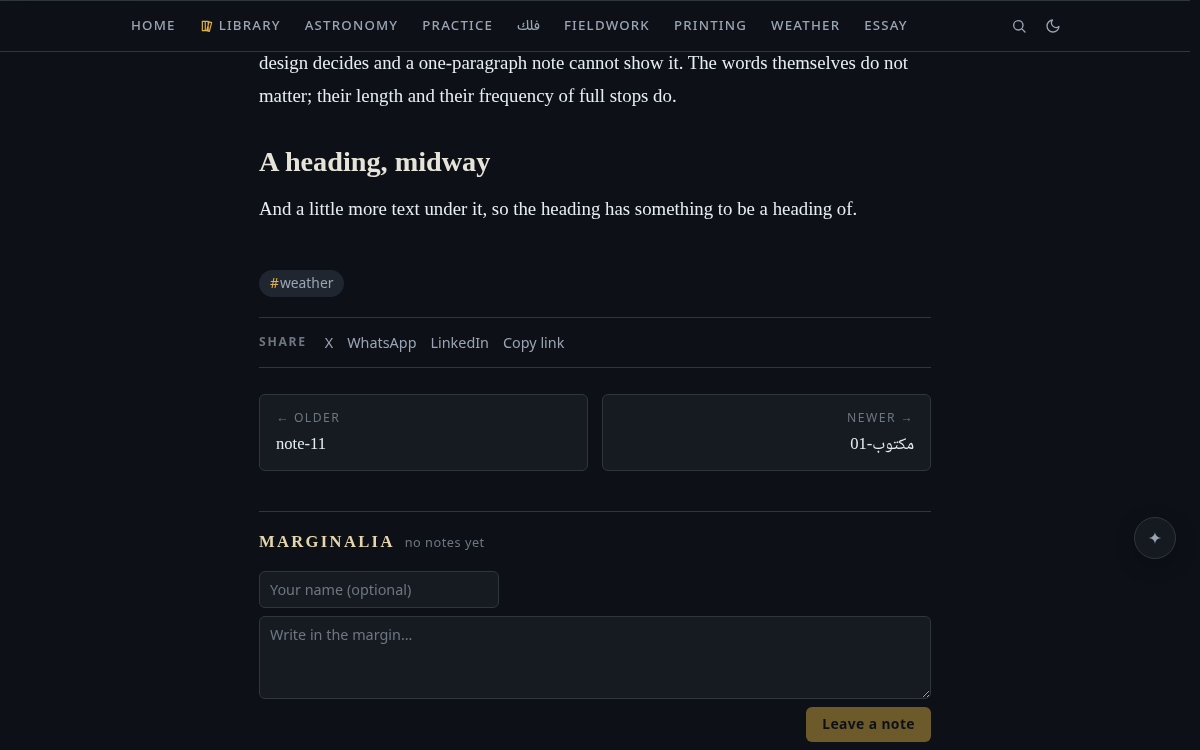
Each article ends with share links (Settings → Publishing → Share buttons can turn the row off), links to the previous and next posts, a "Related" list (published notes that link to this one or that it links to), and comments, followed, when other sites have replied, liked or mentioned it and you approved them, by a small Mentions section (Webmentions & the fediverse). The footer carries a quiet RSS link, a sign-in link and a tiny "powered by Astrolabe" credit. To hide the credit, put .s-blog-powered { display: none } in your custom.css.
RSS, sitemap and SEO
Four things for search-engine crawlers and feed readers come with every layout. All of them respect PUBLIC=false, and all of them mention only published notes, so an unpublished address looks exactly like an address that does not exist.
- RSS at
/feed.xml: an RSS 2.0 feed, advertised on every page with<link rel="alternate" type="application/rss+xml">. Each item links to the note's own address and carries the excerpt as its description. The<pubDate>is always an RFC-822 Gregorian date, whatever the date calendar setting says: it is a format a feed reader parses, not a date a person reads. - Sitemap at
/sitemap.xml: a sitemaps.org 0.9urlsetlisting the front page and then every published note a visitor can see, newest first, each with a<lastmod>taken from the note's own date (date,createdorpublishedin the frontmatter, else the file's creation time). Static pages (page: true) are listed even though the feed leaves them out: an About page is not an article, but it is an address this site serves. Topic pages and public-folder pages are not listed, because each is an index over addresses already in the file. The list stops at the protocol's limit of 50,000 addresses, keeping the newest, with an XML comment saying so if your vault ever gets there. - Robots at
/robots.txt:Allow: /,Disallow: /api/, and aSitemap:line pointing at the sitemap above. - SEO meta: the HTML the server sends carries a
<title>, ameta description, Open Graph tags (og:type=articleon note pages) and a canonical tag. A note's page gets the note's own title and excerpt; every other page gets the site's general meta.
When a post has a linguistic twin in the other language, both article pages carry <link rel="alternate" hreflang="ar">, hreflang="en" and an hreflang="x-default" pointing at the site's own language, and each sitemap entry carries <xhtml:link rel="alternate"> rows for both faces. That is how a search engine is told that two addresses are one article in two languages rather than a duplicate of each other. A pair whose two faces are in the same language gets none of this — there is nothing about language to say — and names its counterpart under the article's title instead.
Absolute URLs in all four are built from SITE_URL when it is set, and otherwise from the request's Host and X-Forwarded-* headers.
Both the feed and the sitemap accept ?lang=ar or ?lang=en when the language filter is on. A crawler or a feed reader cannot send the header the app's own pages use, so a bilingual site's two halves are two addresses.
On a PUBLIC=false instance, the sitemap sits behind login exactly like the feed (a 401 without a session), and robots.txt answers Disallow: / to anyone who is not signed in. That last one is deliberately not a 401: RFC 9309 §2.3.1.3 says a crawler should read a 4xx on robots.txt as "there are no rules, crawl freely", which is the opposite of what a private vault means. The Disallow: / body reveals nothing, since every real address still answers 401 on its own; it only stops the crawl before it starts.