
What you need
- An Android handheld running Android 11 or newer. Tandem is designed around dual-screen devices like the AYN Thor, and works on a single screen too.
- Your games, in a
ROMsfolder in internal storage (see below). - The emulators you want to use, installed and opened once. The ones Tandem knows out of the box are listed in Systems and emulators.
- Optional: Shizuku, if you want games to resume where you left them.
Tandem doesn't come with games, BIOS files or emulators, and never downloads any.
Install the app
Pick one:
- GitHub Releases. Download the newest
tandem-<version>.apkfrom the releases page on your handheld and open it. Android asks once whether your browser or file manager may install apps; allow it. - Obtainium. Obtainium installs apps straight from GitHub and keeps them updated. Tap Add app, paste
https://github.com/ZahakJ/tandem, and tap Add. It then tells you when a new release is out. - F-Droid. Planned; the store listing is ready in the repository.
Every release APK is signed with the same key, so updates install over the old version and keep your data.
Put your games in place
Tandem reads one folder: ROMs at the top of internal storage (/storage/emulated/0/ROMs). Inside it, each system has its own folder, named the way most frontends name them:
ROMs/
├─ n3ds/          Nintendo 3DS
├─ nds/           Nintendo DS
├─ switch/        Nintendo Switch
├─ wiiu/          Nintendo Wii U
├─ gba/           Game Boy Advance
├─ gbc/           Game Boy Color
└─ gb/            Game Boy
If you already use ES-DE or Cocoon, your folders are probably laid out like this already. Folders inside a system folder (for example ROMs/n3ds/RPG/) show up in Tandem as folders, up to three levels deep. The full list of folder names and file types per system is in Systems and emulators.
Note
Tandem only looks in internal storage for now. If your games are on an SD card, move them, or let us know that you need it.
Artwork is optional. If you have scraped art before with another frontend, it is most likely in ROMs/downloaded_media/, and Tandem uses it as it is. Your library explains which folders it reads.
First launch
Pip greets you with two steps. Both are needed once, and Tandem remembers them.
- Read your games. Press A to open Android's All files access screen, switch Tandem on, and press B to come back. This lets Tandem read the
ROMsfolder and its artwork quickly. - Share games with emulators. Press A, and Android's folder picker opens at
ROMs. Tap Use this folder, then Allow. Some emulators (Eden, Cemu and melonDS among them) only open games that are shared with them this way, rather than by file path.
If Shizuku is installed and running, a third, optional step appears: Resume games. Press A and allow Tandem in the Shizuku prompt. You can also do this later; see Resume and Shizuku.
Then Tandem scans your folders. The first time, it also looks for ES-DE gamelists and Cocoon backups and brings over what it finds: titles, descriptions, genres, favorites, play time and artwork paths. A message from Pip tells you how many games it updated. Importing has the details.
Finding your way around
The top screen is your library. The home screen has up to three rows:
- Continue playing, the games you played most recently.
- Systems, one card per system that has at least one game.
- Collections: Favorites, Most played, Recently added, Never played and Genres. A collection appears once it has something in it.
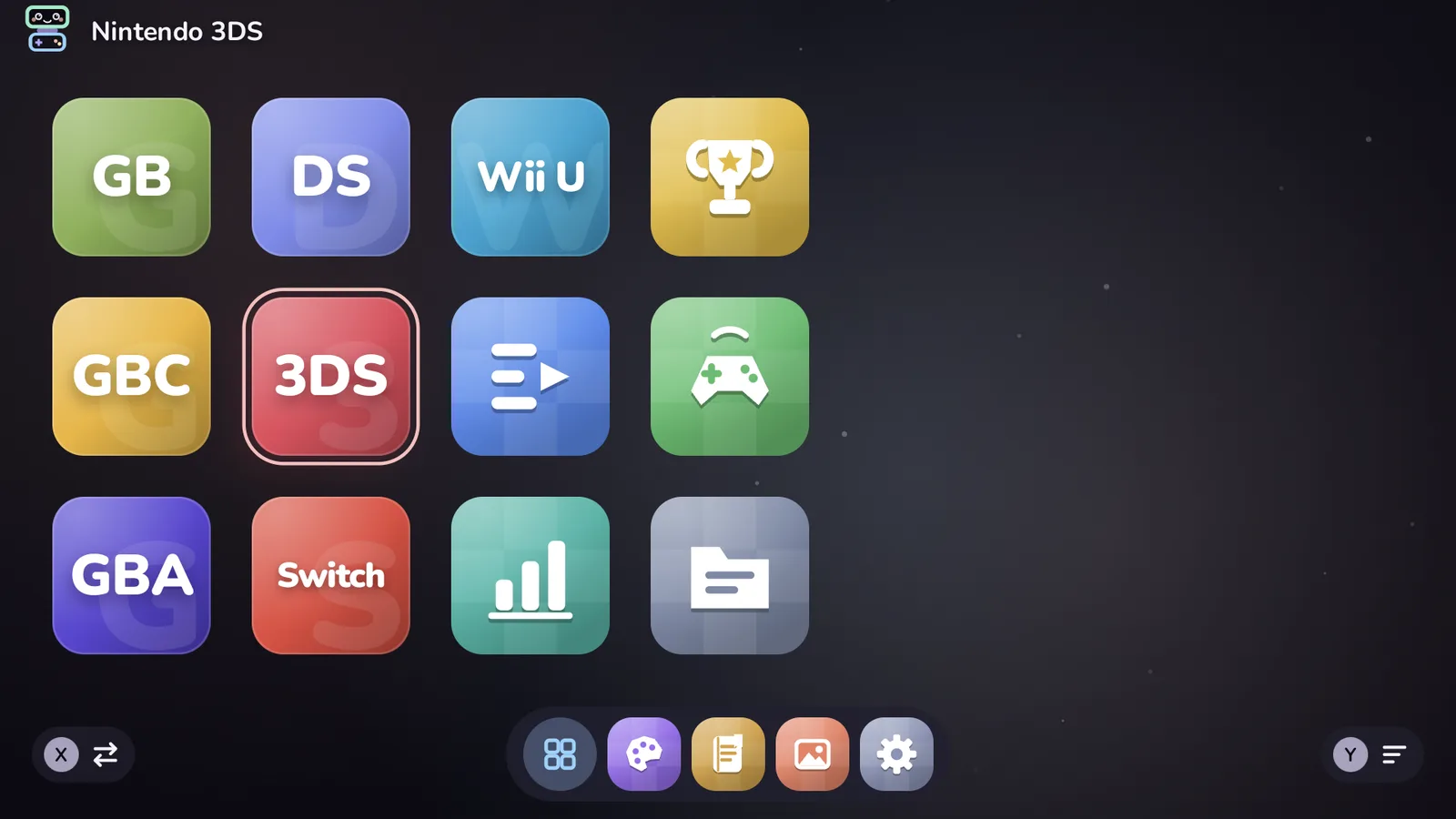
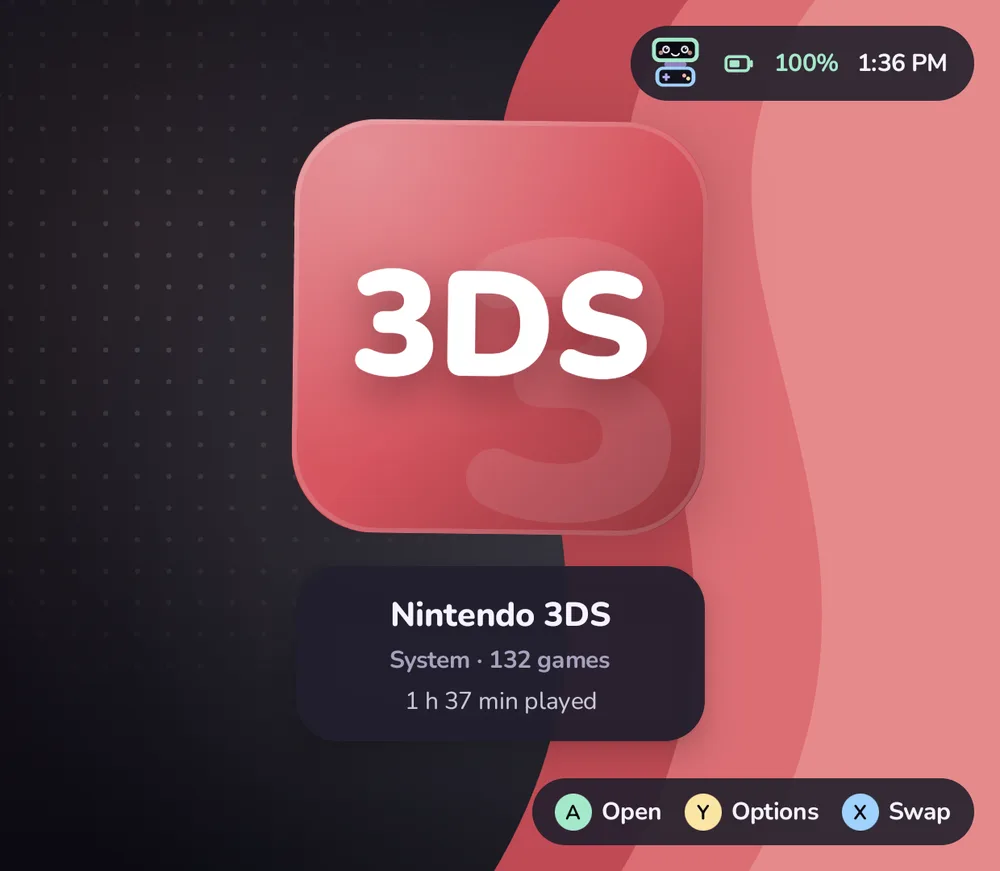
The bottom screen shows details for whatever is highlighted. Move with the D-pad or left stick, press A to open or play, B to go back. Y on a game opens its menu, X searches, and Start opens Settings. The controller reference lists every button.
To play, highlight a game and press A. Tandem starts it in the system's emulator. When you come back to Tandem (with Home, or by quitting the emulator), your place in the library is just as you left it.
Next steps
- On an AYN Thor? Setting up on the AYN Thor has device-specific tips.
- Add a system or a different emulator: Systems and emulators.
- Make games come back where you left them: Resume and Shizuku.
- Something not working: FAQ and troubleshooting.