Getting started
Install
Every build is on the latest release. The lines below are for v0.2.1.
Linux. AppImage below; Loci_0.2.1_amd64.deb and Loci-0.2.1-1.x86_64.rpm are on the release page.
curl -LO https://github.com/ZahakJ/loci-rs/releases/download/v0.2.1/Loci_0.2.1_amd64.AppImage && chmod +x Loci_0.2.1_amd64.AppImage && ./Loci_0.2.1_amd64.AppImage
Windows. PowerShell, .msi installer (or Loci_0.2.1_x64-setup.exe):
Invoke-WebRequest https://github.com/ZahakJ/loci-rs/releases/download/v0.2.1/Loci_0.2.1_x64_en-US.msi -OutFile Loci.msi; Start-Process .\Loci.msi
macOS. Apple silicon; for Intel replace aarch64 with x64.
curl -LO https://github.com/ZahakJ/loci-rs/releases/download/v0.2.1/Loci_0.2.1_aarch64.dmg && open Loci_0.2.1_aarch64.dmg
The build is not notarised, so the first launch says “Apple could not verify Loci”. Right-click Loci in Applications and choose Open, then Open again; on macOS 15 and later, open it once, then click Open Anyway in System Settings → Privacy & Security. Or:
xattr -cr /Applications/Loci.app
(details)
Android 7.0+. The arm64 APK over adb; loci-v0.2.1-android-universal.apk covers every ABI:
curl -LO https://github.com/ZahakJ/loci-rs/releases/download/v0.2.1/loci-v0.2.1-android-arm64.apk && adb install loci-v0.2.1-android-arm64.apk
Or open the APK link on the phone.
From source. Rust (pinned in rust-toolchain.toml), Node and pnpm; on Linux, the WebKitGTK libraries Tauri needs.
git clone https://github.com/ZahakJ/loci-rs && cd loci-rs/apps/loci && pnpm install && pnpm tauri build
The first-run screen
An empty collection opens on three choices:
- Import from Anki. A drop zone for an
.apkgor.colpkg. - Try a sample deck. Thirty bundled cards, with cloze, image, maths and Arabic cards.
- Start empty. Name a first deck and add cards as you go.
Bringing your Anki collection over
In Anki, use File › Export and choose either Anki Collection Package (.colpkg), which is the whole collection, or Anki Deck Package (.apkg) for one deck. Drop the file on Loci’s import screen (or on the first-run drop zone).
Loci reads the whole package and shows a preview (notes, cards, decks, reviews, media, cards with FSRS state) before writing anything. Then:
- Destination. Add to my collection merges by Anki’s note ID, so importing the same deck twice does not duplicate it. Replace my collection swaps the whole collection; the current one is backed up first.
- When a note already exists. Newest edit wins (recommended), Keep mine, or Use the imported version.
- Keep scheduling. On by default. Off imports the cards as new.
With scheduling kept:
- Due dates. Shifted by the difference between the two collections’ creation days, so each card falls due on the same calendar day as in Anki.
- Review history. Every review-log row of the imported cards.
- FSRS state. Stability and difficulty are kept verbatim.
- Media. Every file in the package, with Anki’s filename normalisation.
Cards in an Anki filtered deck return to their home deck; Custom session covers the same uses. If any part of the package cannot be read, nothing is imported and the error says why. Full rules: Import, export and backups.
Studying
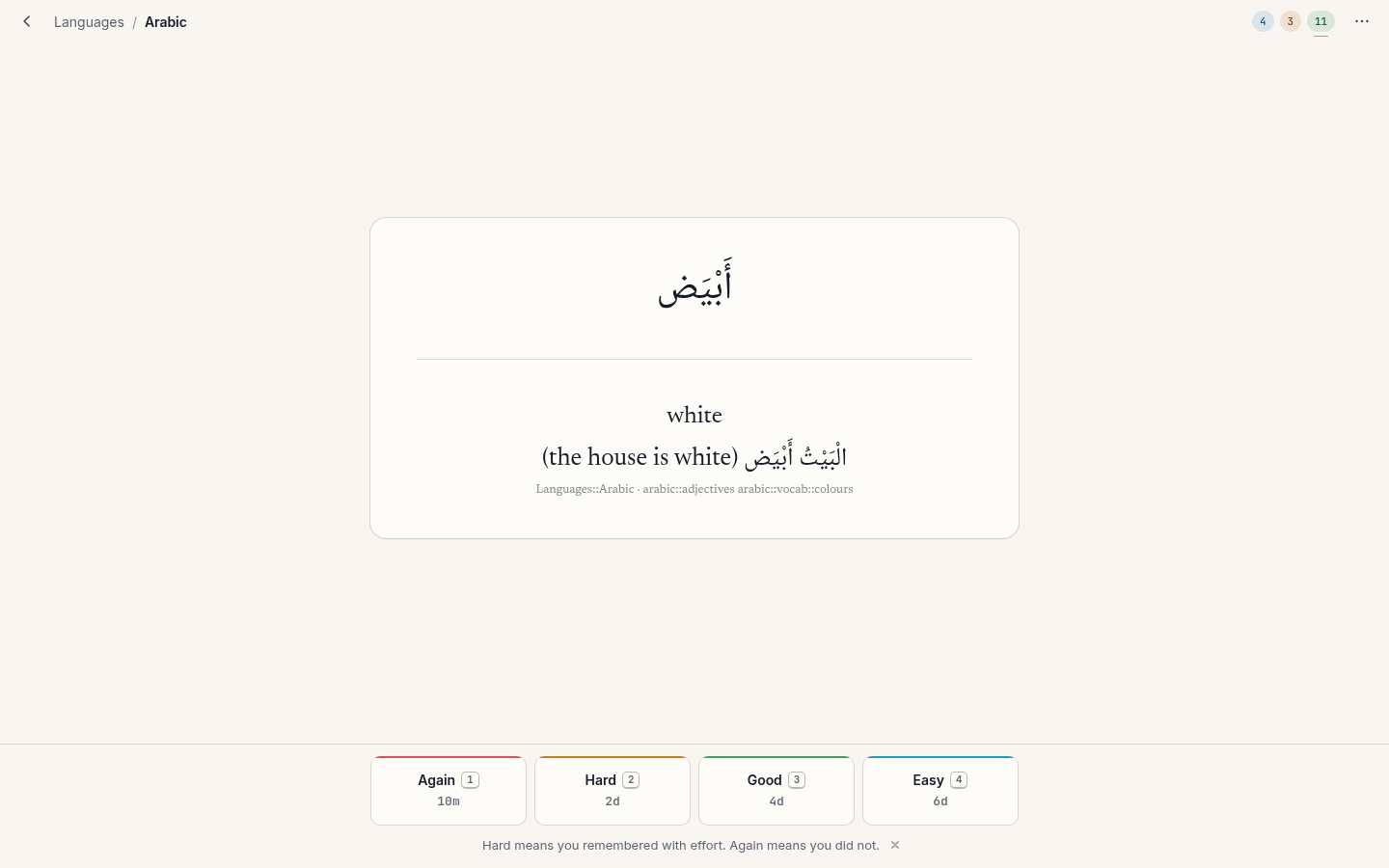
Choose a deck on Home and press Start. Space or enter (or Show answer) reveals the back. Then:
| Key | Button | Meaning |
|---|---|---|
1 | Again | You did not remember. |
2 | Hard | You remembered, with effort. |
3 | Good | You remembered. Space and enter also mean Good. |
4 | Easy | You remembered without effort. |
Each button shows the interval it would give. Hard is a pass; if you did not remember, press Again.
The other study keys:
| Key | Action |
|---|---|
z, u or ctrl+z | Undo the last answer |
e or o | Edit this note |
s or @ | Suspend the card |
! | Suspend the note (all its cards) |
b or - | Bury the card until tomorrow |
= | Bury the note until tomorrow |
f | Toggle the flag |
ctrl+1 … ctrl+7 | Set a flag colour |
m or * | Mark the note (adds the tag marked) |
ctrl+shift+d | Set the due date |
ctrl+delete | Delete the note |
i | Why this interval? |
r | Replay audio |
t | Focus the typed-answer box |
? | Show every shortcut |
esc | Leave the session |
Why this interval? i shows retrievability now, stability (days until recall falls to 90%), difficulty (1 to 10), due date and interval, reviews, lapses and history. See FSRS-6.
A session ends with a summary: cards, minutes, accuracy, tomorrow’s estimate, and an insight if there is one.
Adding notes
a outside a study session opens the Add sheet. Note type and deck remember the last choice; ctrl+enter adds and returns to the first field. Sticky fields keep their value; a duplicate first field is flagged. On desktop a live preview sits under the fields.
The built-in note types are Basic, Basic (and reversed card), Basic (type in the answer), Cloze and Image Occlusion; imported Anki note types work as they did in Anki.
Cloze. Select text and press ctrl+shift+c to wrap it in the next cloze number, or ctrl+alt+shift+c to reuse the current number (two gaps on the same card). Nested and overlapping clozes work as in Anki.
Image occlusion. Paste or choose an image, then draw rectangles, ellipses or polygons over the parts to hide, and choose Hide all, guess one or Hide one, guess one. Shapes are stored in Anki’s image-occlusion format.
Other editor keys: ctrl+shift+x toggles the HTML source and ctrl+m inserts maths.
Where your data lives
The platform app-data directory:
| Platform | Directory |
|---|---|
| Linux | ~/.local/share/space.avicenna.loci |
| Windows | %APPDATA%\space.avicenna.loci |
| macOS | ~/Library/Application Support/space.avicenna.loci |
| Android | the app’s internal storage |
It holds collection.sqlite, media/ and backups/ (12 daily, 10 weekly, 9 monthly). Copying the directory copies everything.